2. Installation
This tutorial uses Docker so that Python, GDAL/PROJ, openAMUNDSEN, and openAMUNDSEN-DA are already bundled in one runtime environment.
In Docker terms:
- the image is the packaged runtime
- the container is one running instance of that image
- a bind mount makes a local host folder visible inside the container
If these terms are new, read Docker’s container basics before continuing.
In this tutorial, your local tutorial folder is mounted as /data inside the container.
That means you can edit files locally with your normal editor while running commands in
the container shell.
1. Install Docker And Verify It
Install Docker on the host machine:
- Windows/macOS: Docker Desktop
- Linux: Docker Engine + Compose plugin
Verify that Docker works:
🟢 Run command:
docker run hello-world
Purpose: download the exact stable runtime reviewed by this tutorial.
🟢 Run command:
docker pull ghcr.io/openamundsen/openamundsen-da:0.9.4
2. Copy The Bundled Example To Your Local Tutorial Folder
The tutorial assumes you first copy the bundled Rofental example out of the image and only then start an interactive container that mounts that local copy.
Choose a local host folder that will hold the tutorial files. The command below copies the bundled example from the image into that folder.
This command uses a bind mount so the host directory
$HOME/openamundsen-da-tutorial/ appears
inside the container as /data. The copied example therefore ends up on the host
as $HOME/openamundsen-da-tutorial/rofental and inside the container as
/data/rofental.
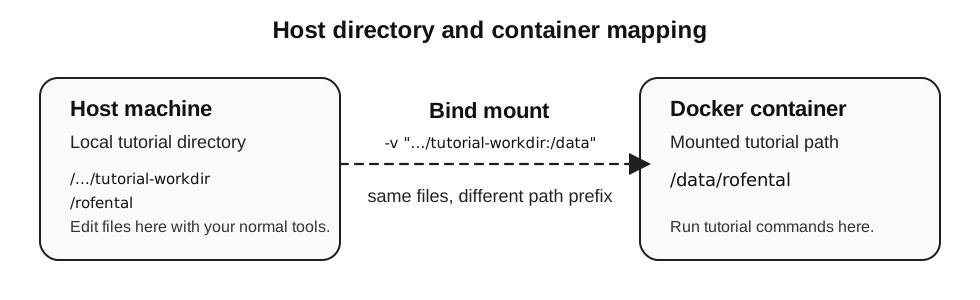
Host directory used in the -v "...:/data" mount and the corresponding path
inside the Docker container.
The bind mount maps your host work directory to /data; --rm removes only the
stopped container, not the copied host files.
🟢 Run command:
docker run --rm \
  -v "$HOME/openamundsen-da-tutorial:/data" \
  ghcr.io/openamundsen/openamundsen-da:0.9.4 \
  bash -lc 'cp -a /workspace/examples/rofental /data/rofental'
After this command, your local host folder contains a full editable copy of the example at
rofental/.
Linux file-ownership note:
- If you run the
docker run ... cp -a ...command withsudo, the copied files on the host can end up owned byroot. - In that case, editing
rofental.ymlorproject_2022_2023.ymlfrom your normal user account may prompt forsudo. - Prefer configuring Docker so your normal user can run it directly before starting the tutorial.
If the copy already produced root-owned files, fix the host-side ownership once:
Optional ownership repair (run this only when the copied setup is root-owned):
sudo chown -R "$USER":"$USER" "$HOME/openamundsen-da-tutorial/rofental"
chmod -R u+rwX "$HOME/openamundsen-da-tutorial/rofental"
3. Start The Tutorial Container Shell
Now start one interactive container and mount the same local tutorial folder as /data.
The tutorial commands in later chapters are executed inside this shell.
Before execution, note the important options: -v mounts the host work
directory, -w starts the shell in the Rofental setup and --cpus controls how
many CPUs Docker exposes. The four thread variables keep numerical libraries at
one thread so that process workers do not oversubscribe those CPUs. --rm
removes the stopped container but leaves the mounted setup untouched.
Replace <CPU_COUNT> with the number of CPU cores you want Docker to use, for
example 24. Do not type the angle brackets. The project worker limit in Chapter
6 must not exceed this value. More workers also require more memory; the ES30 run
has at most 31 useful simultaneous propagations (one open loop plus 30 ensemble
members).
🟢 Run command:
docker run --rm -it \
  -v "$HOME/openamundsen-da-tutorial:/data" \
  -w /data/rofental \
  --cpus <CPU_COUNT> \
  -e OMP_NUM_THREADS=1 \
  -e OPENBLAS_NUM_THREADS=1 \
  -e MKL_NUM_THREADS=1 \
  -e NUMEXPR_NUM_THREADS=1 \
  ghcr.io/openamundsen/openamundsen-da:0.9.4 \
  bash --noprofile --norc
The expected result is a container-shell prompt similar to:
bash-5.2#
The exact Bash version may differ. The prompt means that you are inside the container; it is not a command to type. Verify the working directory and package version:
🟢 Run command:
pwd
openamundsen-da --version
pwd should print /data/rofental, and the version should match the image tag.
Stay in this container shell for the remaining tutorial chapters. Type exit
only after you have finished the results and cleanup checks.
4. Editing Files During The Tutorial
You do not need a text editor inside the container. Edit files in your local tutorial
folder on the host machine. Because that folder is mounted into the container as /data,
changes made locally are immediately visible inside the running container shell.
On Linux, if these files are unexpectedly root-owned, go back to the ownership fix above
before continuing. The tutorial assumes your local rofental/ copy is writable by your
normal user account.
The two files you will inspect most often are:
/data/rofental/rofental.yml/data/rofental/projects/project_2022_2023/project_2022_2023.yml
Continue with 3. Example Data: Rofental.